
Enterprise Floor Mapping
Plot events for people, devices and assets on a floor plan, and replay who was where, and when.
A floor map draws your events on a plan of a building. A badge scan shows up at the gate that read it, and a log from a device shows up at the desk the device sits on. A timeline then lets you replay the data, so you can see who was where, and when. Floor mapping is available from Stroom 7.14.
How it fits together
A floor map is built from three documents:
- Floor Map is the map itself. You draw it and view it here. It appears under Search when you create a new document.
- SQL Temporal Store holds the map's facts: the background plans, the objects on them (desks, gates, cameras) and the areas, each with its position. You can also keep static details here, such as a person's name. It appears under Indexing.
- FloorMap Event Store holds the events, keyed by the entity they are about (a person, a device). It is a Plan B temporal state store with a fixed key and value schema. It also appears under Indexing.
Facts say what the site looks like at a given time. Events say what happened on it. Facts never animate. Events are what the timeline plays back.
Setting up a floor map
- Create a SQL Temporal Store for facts and a FloorMap Event Store for events. As with Plan B, the event store's name may only contain lower-case letters, digits and underscores.
- Build pipelines to load your facts and events into those stores. The event store's name must match the
<map>element your ingest XSLT writes to. - Create a Floor Map. Stroom asks for its facts store and events store, and you can't finish until you have chosen both. Cancelling deletes the new document. It then fills in default queries for events, the timeline histogram and the time range.
- Upload the background plan on the Assets tab, and save the document: an uploaded image is only served once the document is saved.
- Draw or correct the layout on the Editor tab.
- View and replay it on the Map tab.
Note
The event store's name is used in two places: the events query reads it as param('EventStore'), and the ingest XSLT writes to it as a map name. If you rename the store, change both.
Facts: the shape of the site
Each fact is a value, in JSON (the default) or XML, stored against a key and the time it takes effect. A change that applies from a given time is a new version with that effective time, so the store keeps a record of how the site has changed. Moving, resizing or rotating a fact on the Editor tab, or editing its properties, changes the version in effect at the timeline position in place; Add Time Version records the change from that time instead. Loading a fact with the same key and effective time as an existing version replaces that version.
On the Settings tab, the Value Schema tells the map where each part of a fact is. The default schema reads these JSON paths:
| Path | What it holds |
|---|---|
.type | The object's type, such as gate or camera. background, person and area have special meanings. |
.name | The label shown on the map. |
.coords | Its position, as [x, y]. |
.img | The URL of an image uploaded on the Assets tab, such as the background plan: /assets/<floor map UUID>/<file name>. |
.tm-world-to-map | The transform from real-world coordinates to the map. |
.geometry | The outline of an area. |
.fill, .opacity | How an area is filled. |
.status | ACTIVE, the default when blank, or DELETED. |
A DELETED version hides the fact on the map from that time onwards. Only the floor map reads this status. XSLT lookups and dashboards still see the fact.
Events: what happened
The map finds its events by running a StroomQL query against the event store. On the Events Query tab you choose which result column plays each role:
- Entity ID (required): who or what the event is about.
- Location: literal
x, ycoordinates, fixed when the event was loaded. - Location Ref: the key of a fact, such as a desk or gate. It is looked up at the time shown on the timeline, so if the desk moves, its occupants move with it.
- Type: which layer the entity is drawn on, and how. If no type is given, an ID containing
@is drawn as a person.
Each list offers the query's columns once you have run the query on the tab. If an event has both a Location and a Location Ref, the Location is used. The default query selects Status and Message as well. The map doesn't use them yet. The timeline's bars and its Show All button come from two more queries, Histogram Query and Show All Query, on the Settings tab.
On the event store's Settings tab, Event Expiry sets how long an entity stays on the map after its last event. The default is 24 hours, and it can't be longer than the store's data retention. Turning on Condense Data there makes an entity that keeps reporting the same value expire while it is still reporting, because a run of identical values is collapsed to its earliest.
Drawing the map: the editor tab
The Editor shows the canvas, a Layers panel, the timeline, a list of every fact, and the time versions of the selected fact.
- Select by clicking. Hold Shift, Ctrl or Cmd to add to the selection, or drag with one of them held to select a region.
- Move by dragging. Corner handles scale and the round handle rotates (hold Shift to snap to 15°).
- Right-click on empty space to add an object, or anywhere to draw an area or set the scale. Right-click on an object to edit its properties, add a time version, duplicate it, delete it from the current time, or erase its history.
- Set Scale from the right-click menu by drawing a line over something whose length you know and entering that length. Sizes and positions are then in real units.
Delete From This Time keeps the object's past and hides it from now on. Erase History removes the object completely. Edits are only written to the facts store when you save the document.
Layers
There is one layer per type, and the order of the list is the drawing order. Each layer can be drawn as a coloured shape, as one of the built-in icons (people, doors, gates, badge readers, cameras, sensors, servers and other things that produce logs), or as an image you upload on the Assets tab. Discover types scans the facts store for types that don't have a layer yet.
Viewing and replaying: the map tab
The Map tab doesn't change the layout.
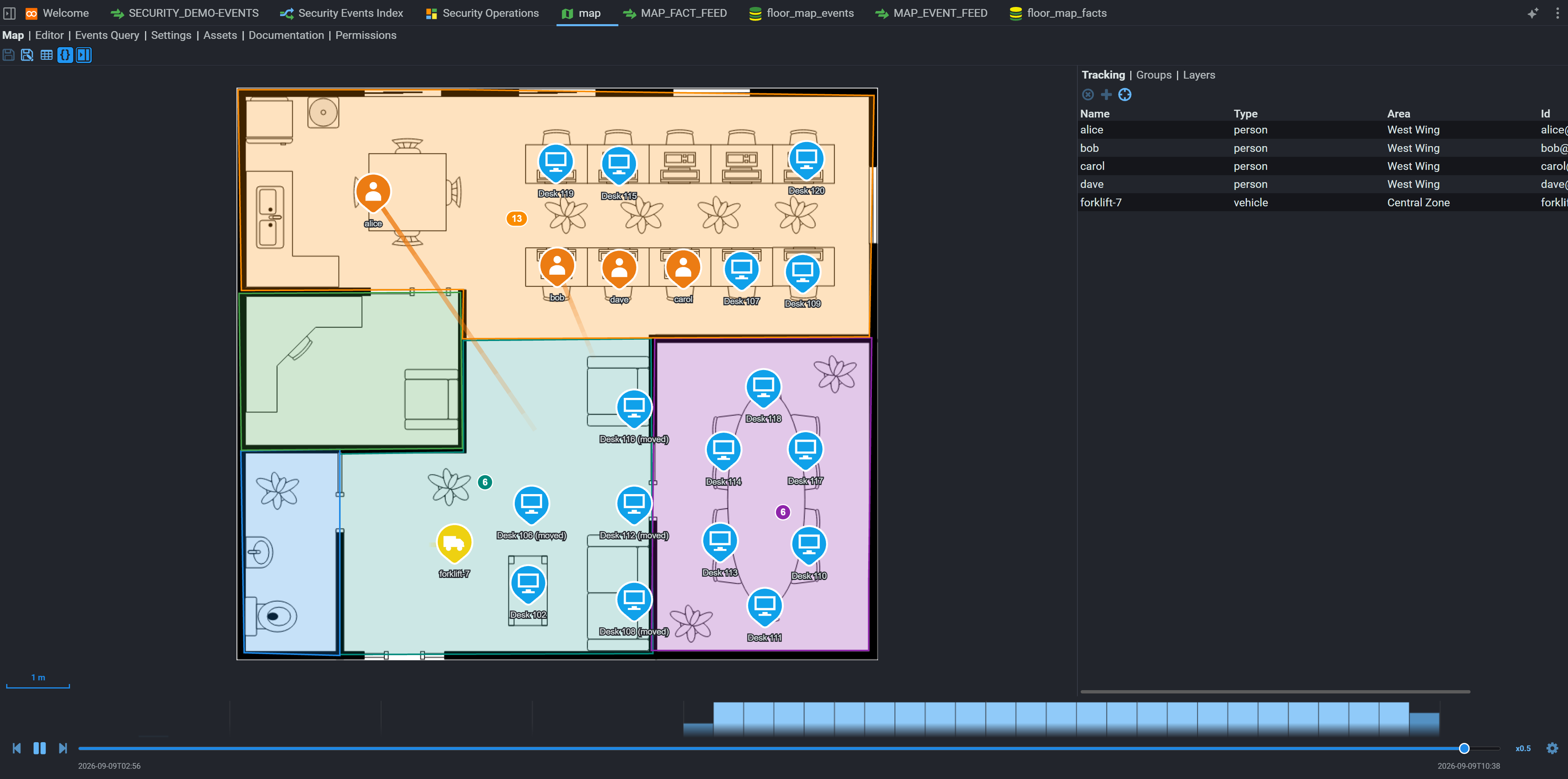
- Tracking lists the entities on the map and the area each one is in. Select one to follow it.
- Groups let you name a set of entities and highlight them in a colour. Groups are saved with the floor map.
- Entities that overlap are drawn as a cluster. Click the cluster to list its members.
The timeline has a histogram of event density, a scrubber, play and step buttons, and playback speeds from 0.5× to 10,000×. Its settings let you loop playback, fix the start and end dates, or show the whole time range. Entities move smoothly between positions and leave a short trail.
Current limits
- The map shows at most 20,000 entities at once, and reads at most 20,000 rows of fact history.
- A floor map keeps the default queries it was created with. If the defaults change later, existing maps don't pick up the change.
- A Location Ref that points at a fact which doesn't exist is ignored.
Related pages
- Building a floor map: setting one up from empty stores to a working map.
- Plan B: the store that FloorMap Event Stores are built on.
- Reference data example: enriching badge-scan events with names, icons and locations.
- Floor map problems: when the map is empty or entities are missing.