
Processors Tab
The list of processors and processor filters on a pipeline or folder: the two kinds of row, the two Enabled boxes, and when each toolbar button is enabled.
The Processors tab is where processing is switched on and off. A pipeline's tab lists that pipeline's processor and filters. A folder's tab lists them for every pipeline in the folder and below it, so a whole project can be seen and switched from one place.
Processor rows and filter rows
The list has two kinds of row, and almost every confusing thing about this screen comes from mixing them up.
The processor row : One per pipeline, with the pipeline icon , and an expander to show or hide its filters. It is the pipeline's on/off switch for processing as a whole. It has no criteria, no priority and no progress of its own.
The filter rows : Beneath it, one per processor filter, with the filter icon . Each one says which streams to process (its expression), how urgently (its priority), and tracks how far it has got. A reprocess filter created from a Data tab appears here too, with Reprocess set to True.
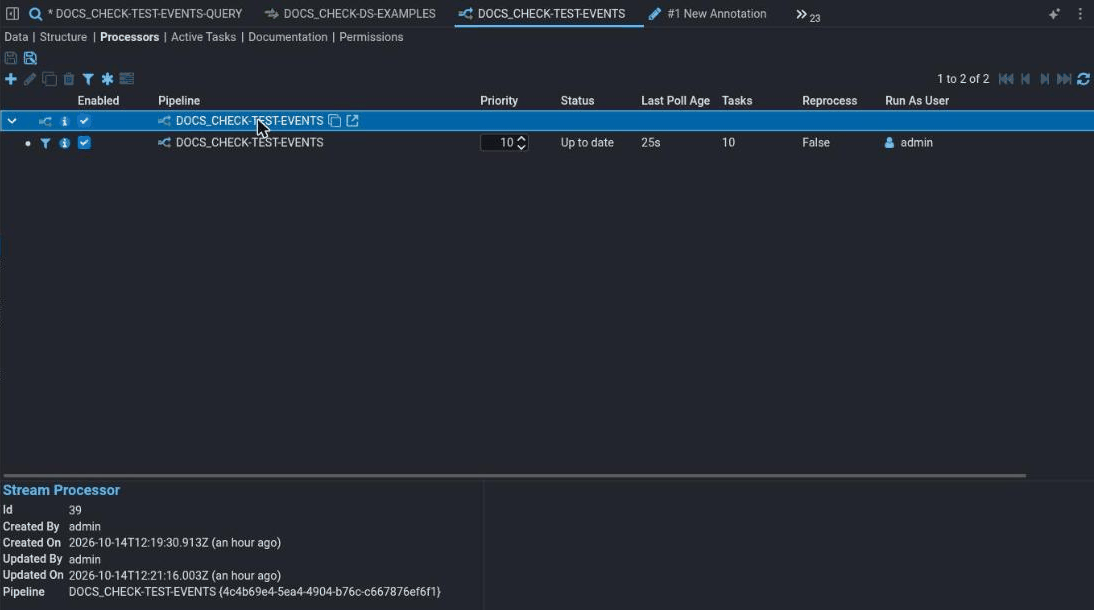
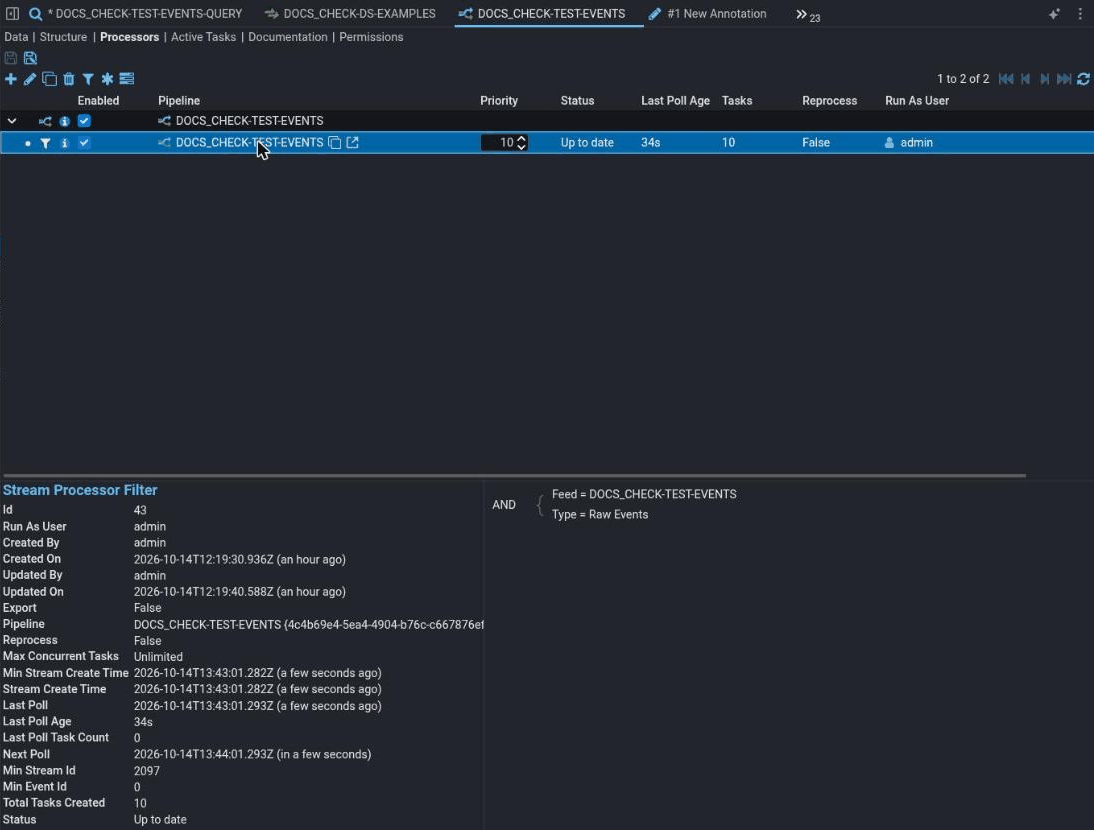
Two Enabled boxes
Both the processor and the filter must be ticked for anything to be processed. A ticked filter under an unticked processor does nothing, and neither row says why.
The tick boxes in the Enabled column take effect straight away; there is nothing to save. So does changing a filter's Priority with its spinner.
A filter added with Add Processor starts unticked. If it is the pipeline's first, the processor row it creates is unticked too. This is deliberate, so that you can check the filter before it starts creating work, but it means a new filter does nothing until you tick both.
Filters created from a Data tab's Process button are the exception: that dialog has an Enable new filters option.
The columns
| Column | Shows |
|---|---|
| Enabled | The row's on/off switch. |
| Pipeline | The pipeline the processor runs. |
| Priority | Filter rows only. Higher priority filters get their tasks handed out first when there is a queue. |
| Status | Filter rows only. How far the tracker has got: Up to date when the last poll found nothing new, … behind with how old the oldest stream still to process is, Complete for a filter with a fixed end that has reached it, or a message if the tracker has a problem. |
| Last Poll Age | How long since the filter last looked for new streams. Blank if it has never polled, which for an enabled filter means its processor is off or the Processor Task Creator job is not running. |
| Tasks | How many tasks the filter has created. |
| Reprocess | True for a filter that reprocesses streams already processed once. |
| Run As User | Whose permissions the processing runs with. |
The toolbar
| Button | Enabled when | Does |
|---|---|---|
| Add Processor | Always. Not shown on a folder's tab. | Opens Add Filter for this pipeline. See below. |
| Edit Processor | Exactly one filter row is selected | Edits that filter. Double-clicking a filter row does the same. |
| Duplicate Processor | A filter row is selected. Not shown on a folder's tab. | Opens Add Filter filled in from the selected filter. The copy has a tracker of its own, so it starts again from the earliest stream it matches. |
| Delete Processor | One or more filter rows are selected | Deletes the selected filters. Despite the name it never deletes the processor row. |
| Filter Processors | Always | Narrows the list, for example to enabled filters only. |
| Batch Edit Current Processors | Always | Changes settings on every filter the list currently shows, not on the selected rows. Narrow the list with Filter Processors first. |
| Show Tasks | Exactly one filter row is selected | Opens the tasks that filter has created. |
Edit, Duplicate, Delete and Show Tasks stay greyed out while the processor row is selected, whatever else is true. Edit and Show Tasks also go grey if more than one row is selected, because they can only open one filter.
Who can change things here
On a pipeline's tab, anyone who can edit the pipeline can change its processors. If you can only view the pipeline, the tab is read-only: no toolbar buttons, and the tick boxes and priorities cannot be changed.
On a folder's tab, only users with the Administrator application permission can change anything. Everyone else sees it read-only, even for pipelines they could change from the pipeline's own tab. A folder's tab never offers Add or Duplicate: a filter belongs to one pipeline, so it is added from that pipeline.

The tab itself is only shown to users with Manage Processors.
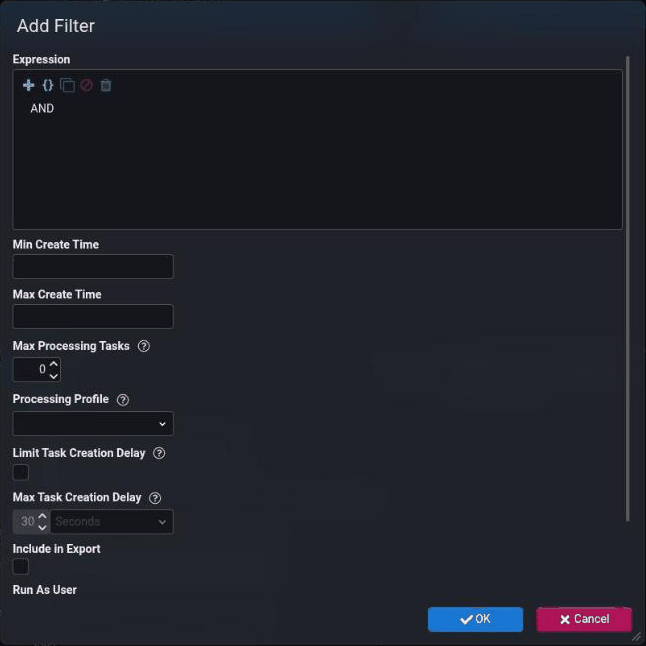
Add Filter
| Field | Means |
|---|---|
| Expression | Which streams to process, usually Feed = <feed> and Type = <stream type>, for example Raw Events. |
| Min Create Time, Max Create Time | Only process streams created in this range. Blank means no limit. |
| Max Processing Tasks | A cap on how many of this filter's tasks run at once across the cluster. 0 means no cap. |
| Processing Profile | A named processor profile, set up under Monitoring → Processor Profiles, that limits concurrent tasks per node and across the cluster. |
| Limit Task Creation Delay, Max Task Creation Delay | A filter that keeps finding nothing new is checked less and less often. Ticking Limit Task Creation Delay caps that wait at Max Task Creation Delay for this filter, so occasional data is picked up sooner. Unticked, the cluster-wide limit applies. |
| Include in Export | Whether the filter is included when its pipeline is exported, including by a Git Repo push. Importing never updates a filter that already exists; see Processor filters on import and export. |
| Run As User | Whose permissions the processing runs with. It must be able to read the feed. |
| Set Feed Dependencies | Feeds this filter waits for, typically reference feeds: streams are held back until the listed feeds have data at least as recent, optionally with minimum and maximum delays. |
There is no Enabled box or Priority in this dialog. The filter is created disabled with an automatic priority; set both on the list afterwards.
The tracker cannot be rewound
A filter remembers how far it has scanned, shown as Min Stream Id in its details. Editing the filter's expression does not move that back, so streams it has already passed are never looked at again under the new criteria. To process older streams, reprocess them or replace the filter.