
Your First Dashboard
Wiring a query, a table and a visualisation together to see the data you sent.
A dashboard is a set of components wired together: a query gets the data, a table shows it, and a visualisation draws it. Each feeds the next.
Build it
Create a Dashboard, from New > Search > Dashboard. It starts with a query and a table already linked.
Point the query at your index. Open the query component's menu and choose Settings, then pick TEST-EVENTS-INDEX as the Data Source. The dashboard's time range, at the top right, defaults to All time, which covers your data. Add an expression term, or leave it unfiltered for now.
Choose the table's columns. On the table's toolbar, click and choose Data Source, then a field. Add EventTime, User, Action and IP. The same menu also offers Annotations, Counts and Custom columns. It reopens at the submenu you used last, so check which field you are clicking.
The table can only show fields the index stored, unless the index has a default extraction pipeline that can go back to the original event for more.
Add a visualisation. On the dashboard's toolbar, click , choose Visualisation, then click where you want it placed. In its Settings, the Table is already selected as its data; choose a Visualisation, such as Visualisations/Version3/Doughnut.
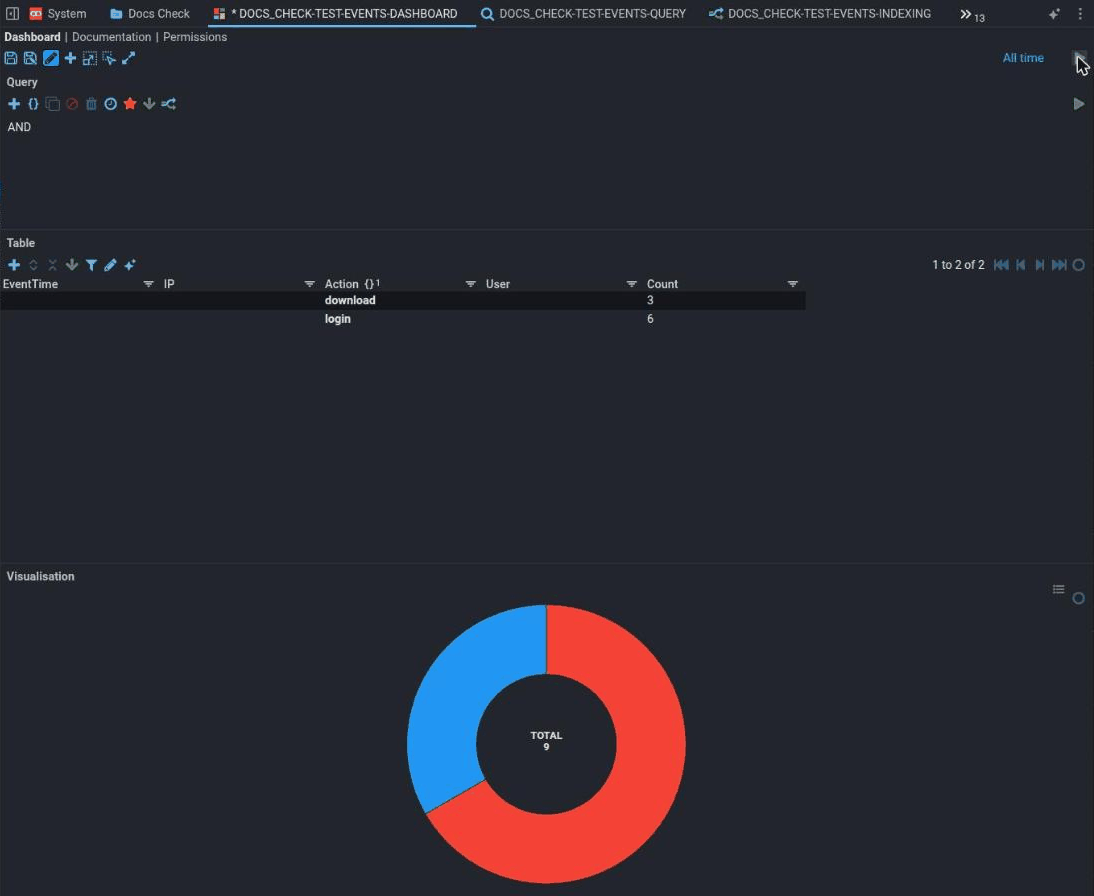
A visualisation declares the roles it needs, and you map the table's columns onto them on the Data tab of its settings. The Doughnut's Names role takes Action, but its Values role needs a number, and the table has none yet. Add one: from the table's menu choose Counts > Count, then open the Action column's menu and choose Group > Level 1. The table now has one row per action with its count, and you can map Values to Count.
How long: immediate
A dashboard query runs when you run it, and usually returns in seconds against an index this small.
A query that never completes is a different problem from one that returns nothing.
Check it worked
Run the query. The table should fill with the rows you sent, and the visualisation should draw something.
Before you group the table, it has one row per event: three for each post of the sample file. Look for the golden row then, or remove the grouping to see the events again. Once grouped by Action, the counts across the rows add up to the same total.
The check that matters most
A row in the table that you can trace back to a line of the CSV you posted.
That single row proves the whole chain: receipt, translation, indexing, extraction and search. It is the end-to-end check, and it is worth doing deliberately once.
This does not prove it worked
An empty table is not necessarily an empty index. Check the time range first. It defaults to All time, but if you have changed it, remember that your data has the event times you gave it, not the time you sent it.
A visualisation drawing nothing is not necessarily a data problem. If the table has rows, the problem is the mapping from columns to roles.
Fails silently
A table can only show what the index stored.
Indexed and stored are different: a field can be searchable without its value being kept. A column over a field that was indexed but not stored comes back empty, with no error.
The other route is a default extraction pipeline on the index, which goes back to the original event for the full record. Without one, a dashboard is limited to stored fields, and that limit is invisible until you hit it.
If it isn't working
In order. Each step rules out a class of cause, so don't skip ahead.
- Does the index have documents? Check the Doc Count on the index's Shards tab, after clicking refresh. If it is zero, this is an indexing problem. Go back to Index and search it.
- Is the time range right? The commonest cause by far. Set it back to All time and run again.
- Are the columns empty rather than the table? That is stored versus indexed, or a missing extraction pipeline. See the trap.
- Does the visualisation have its roles mapped? A role left unmapped means nothing is drawn, and the component does not complain. A role that needs a number, such as the Doughnut's Values, needs a numeric column such as Counts > Count.
- Does the query return but the table stay empty? Check the table is wired to the query component rather than to nothing.
Next
You have been through the whole path once. Where to go next, or, to build one on an index or Plan B store of your own, A dashboard from a store.