
Annotations
Record an investigation against the events it is about, with a status, an assignee, comments, labels and collections, and a full history of every change.
An annotation records what people have found out about one or more events. It has a title and subject, a status, an assignee and a running thread of comments, and it stays linked to the events it is about. Annotations are how an analyst picks up a detection or a suspicious event, works it, and closes it, without copying the data somewhere else.
Annotations need the Annotations application permission. Users without it don't see the annotation buttons, menus or data source.
Annotating from a table
Annotations are made from the results of a search: a table on a dashboard, or the results table of a Query.
- Select one or more rows in the table.
- Click the Annotate button on the table's toolbar, or right-click a row.
- Choose an action:
- Create Annotation starts a new annotation linked to the selected events.
- Add To Annotation finds an existing annotation and links the events to it.
- Edit Annotation opens the annotation already on the selected row.
- Change Status and Change Assigned To update the annotations on all the selected rows at once.
Events are linked by their StreamId and EventId, so the table must include those columns for events to be linked. A StroomQL query that doesn't group adds them for you. As well as the event links, Stroom keeps a copy of the selected rows' visible columns with the annotation, so the context is there even after the search has gone.
If the table has columns named title, subject, status, assignedTo or comment, their values fill in the new annotation. This lets a dashboard or query suggest the title and status of the annotations it creates.
You can also start an annotation from the Annotations menu with Create New Annotation, and add event links to it by hand.
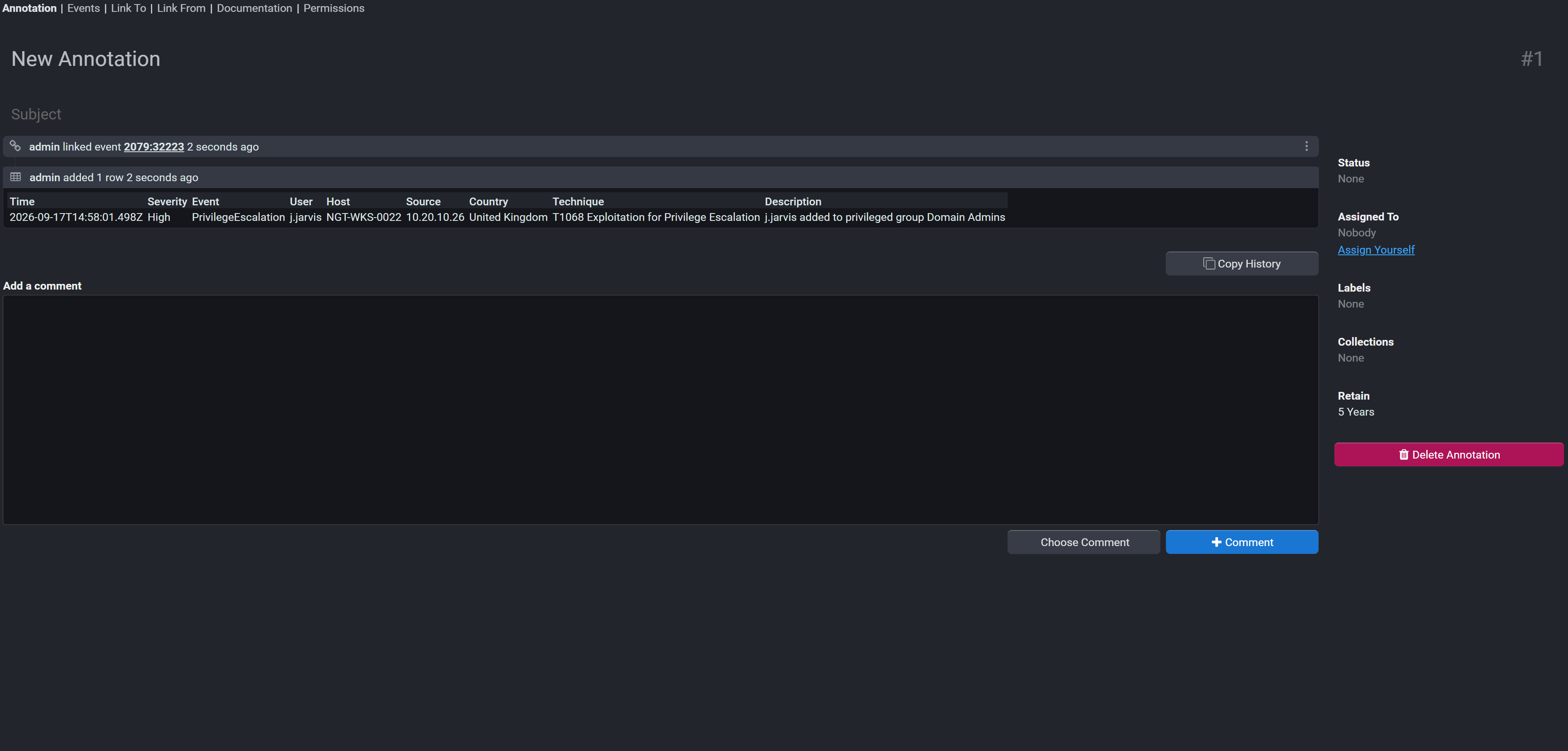
The annotation
An annotation opens in its own tab, with these sub-tabs:
| Tab | What it shows |
|---|---|
| Annotation | The title, subject, settings, comments and history. |
| Events | The events the annotation is linked to. You can add and remove links here. |
| Link To, Link From | Other annotations this one is linked to, and those that link to it. |
| Documentation | A longer description, in Markdown. |
| Permissions | Who can view and change this annotation. |
On the Annotation tab you can set:
- Status: where the investigation has got to.
- Assigned to: the user responsible for it.
- Labels: tags that describe it, such as the kind of activity.
- Collections: groups it belongs to, such as an incident or a case that spans many annotations.
- Retain: how long to keep it (see below).
Below these is the comment box. Type a comment, or use Choose Comment to pick one of your organisation's standard comments.
History
Every change is recorded with who made it and when: comments, status and assignment changes, labels and collections added or removed, events and annotations linked or unlinked, rows added, and changes to the title, subject, description and retention. The history reads as a single timeline on the Annotation tab, and Copy History copies it as text. From an entry's menu, Edit Entry changes a comment and Delete Entry removes an entry.
Each annotation is a secured document, so the history is visible only to people who can view the annotation.
Statuses, labels, collections and standard comments
The values people choose from are managed centrally, from the Annotations menu:
| Menu item | Manages |
|---|---|
| Annotation Statuses | The statuses an annotation can move through. |
| Annotation Labels | The labels that can be put on annotations. |
| Annotation Collections | The collections annotations can be added to. |
| Annotation Comments | Standard comments, offered by Choose Comment. |
Each of these has a Name and a Style, which sets how it is drawn, for example as a coloured lozenge on the annotation and in lists. Each also has its own permissions, set with Change Permissions.
Finding annotations
Browse Annotations, on the Annotations menu, lists the annotations you can see, with a quick filter, and opens the one you choose.
For anything more, query them. The Annotations data source has one row per annotation, and can be used from a dashboard or a Query like any other data source:
| Field | Holds |
|---|---|
Id, UUID | The annotation's identifiers. |
CreatedOn, CreatedBy, UpdatedOn, UpdatedBy | When and by whom it was created and last changed. |
Title, Subject, Description | Its text. |
Status, AssignedTo | Where it has got to and who has it. |
Label, Collection | Its labels and collections. |
Comment, History | Its comments and history. |
StreamId, EventId, Feed | The events it is linked to. |
from Annotations
where AssignedTo = "jbloggs"
select Id, Title, Status, UpdatedOn
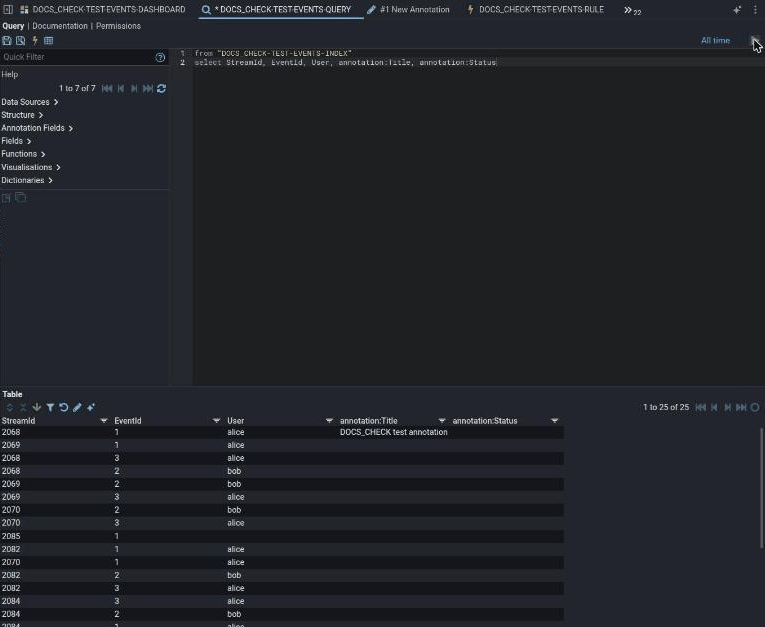
Searches over an index can also show the annotations on each event. The same fields apart from the event links (StreamId, EventId and Feed), prefixed annotation: (for example annotation:Status and annotation:AssignedTo), can be added as columns, and are listed under Annotation Fields in the Query help pane. The identifier is annotation:Uuid, not annotation:UUID. A table of events then shows which have already been looked at, and by whom.
The annotation() and createAnnotation() expression functions make a link in a table cell that opens an existing annotation, or starts a new one for that row.
Annotations from pipelines
The AnnotationWriter pipeline element writes XML in the annotation:1 namespace as annotations, so a pipeline can create annotations in bulk from the data it processes.
Retention
Each annotation has a retention period, shown as Retain on the Annotation tab. A new annotation takes the default from the stroom.annotation.defaultRetentionPeriod property, which is 5y. The Annotation Retention job deletes annotations that are past their retention, and Delete Annotation removes one by hand. Deleted annotations are removed from the database for good after stroom.annotation.physicalDeleteAge, which defaults to seven days.
How long: immediate
Creating and changing an annotation takes effect at once: it is stored in the database, not written through a pipeline, so there is nothing to wait for.
Finding one by searching is a search, and so is subject to the index it runs against.
Check it worked
Create an annotation from a table of results, then find it again from the annotation search rather than from the row you created it on.
The check that matters most
The annotation is findable by searching, and still linked to its events.
Creating one is easy to confirm and proves little. Finding it independently proves it was stored, indexed and linked, which is what you will rely on weeks later.
This does not prove it worked
Seeing it on the row you created it from is not proof it was stored correctly. That view can be showing you what you just typed.
An annotation with no linked events is not necessarily broken, but it is usually not what was intended: the link is what lets you get back to the data.
Fails silently
An annotation is kept on its own schedule, not the data's.
Annotations have their own retention, separate from the streams they point at. Data retention can remove the events an annotation links to while the annotation itself remains, leaving a case that refers to evidence no longer held.
If annotations are part of your audit trail, set the two retention periods deliberately and with each other in mind.
If it isn't working
In order. Each step rules out a class of cause, so don't skip ahead.
- Did the annotation save? Re-open it from a fresh search rather than from the table you created it on.
- Can you search annotations at all? If no annotation is findable, this is a search or permission problem rather than one about this annotation.
- Are the linked events still there? A missing link usually means the events were removed by data retention. See the trap.
- Does the person reporting the problem have permission? Annotations obey the same permission model as everything else, so an annotation that is invisible to one user and visible to another is working as configured.
- Was it created from a pipeline? An annotation written by a pipeline fails the way any other pipeline output does: look for an
Errorstream on the feed.
Related pages
- Analytic rules: raising the detections that annotations track.
- StroomQL and data sources: querying the Annotations data source.
- Dashboards: the tables annotations are made from.
- Users and permissions: granting the Annotations permission.