
Data Tab
The stream browser on folders, feeds and pipelines: what it lists, the difference between clicking and ticking a stream, and when each toolbar button is enabled.
The Data tab lists streams and shows their content. It is the same screen on every document that has it. What changes is the filter it starts with.
What it lists
| Opened from | Lists |
|---|---|
| A feed | Streams belonging to that feed: what was received, and what pipelines wrote back to it. |
| A pipeline | Streams written by that pipeline: its output, not its input. To see a pipeline's input, open the feed. |
| A folder | Streams whose feed, or whose producing pipeline, is in that folder or any folder below it. |
| System | Every stream you can see. |
Every one of these starts with a second condition, Status = Unlocked, so deleted streams are never listed by default. Filter shows the full expression and lets you change it:
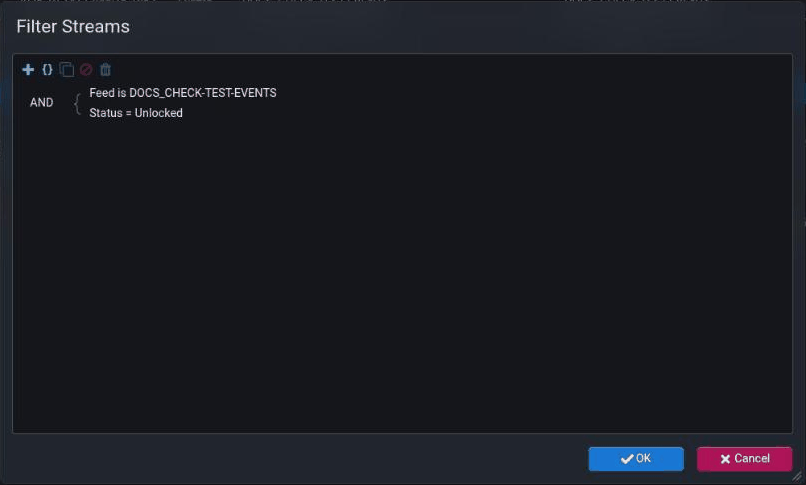
Changing the status term, for example to see Deleted streams, makes Stroom warn that you are setting an advanced filter and ask you to confirm. The warning is about cost: without a time constraint such as Created, a status search can scan a lot of the stream store.
If the list is empty when you know there is data, click Refresh at the top right before concluding anything. A folder's list in particular may not load until it is refreshed.
The three parts of the screen
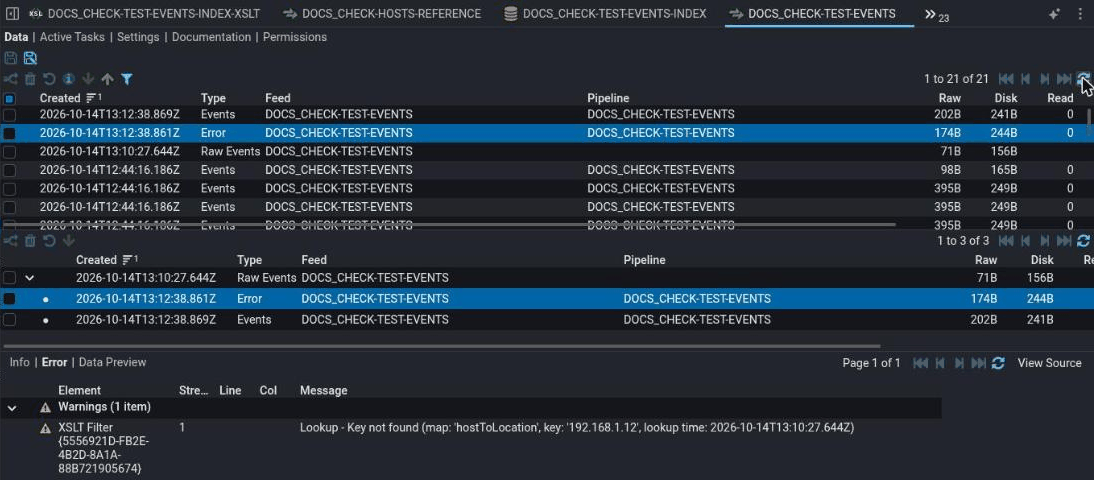
From top to bottom:
The stream list : The streams the filter matches, newest first, a page at a time. Each row shows when the stream was created, its type, its feed, the pipeline that produced it (blank for received data) and its size.
The related streams list : The family of the stream you clicked: the received stream at the root, and every stream processing produced from it, indented beneath. Clicking a stream here changes the preview without changing the stream list.
The preview : The content of the stream highlighted in the related streams list, with tabs: Info (its attributes), Data Preview (its content), and, only when the stream has them, Error (for an Error stream, the errors and warnings as a table), Meta and Context. View Source opens the raw content in its own tab.
Clicking a row and ticking it are different
This is the cause of most "why is that button greyed out?" questions.
- Clicking a row highlights it. The highlight drives the related streams list and the preview. It is for looking at one stream.
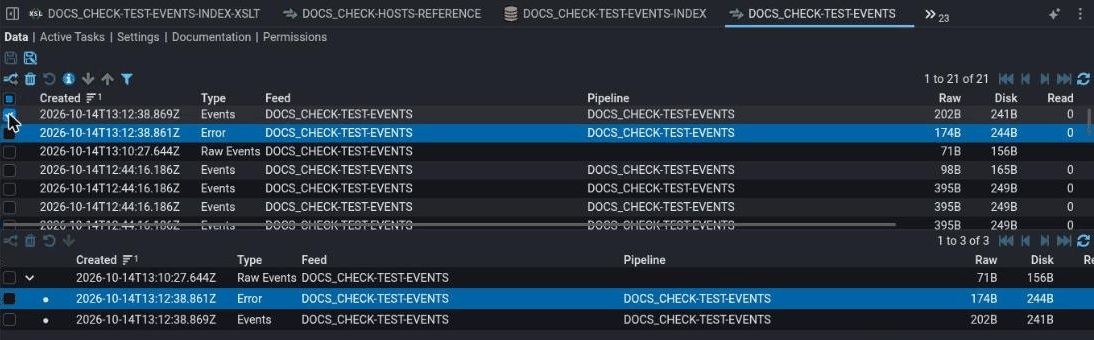
- Ticking a row's box selects it. The ticks drive the toolbar buttons. They are for acting on streams, and you can tick several.
The two are independent. You can tick one stream while a different one is highlighted, and the toolbar acts on the ticked one:
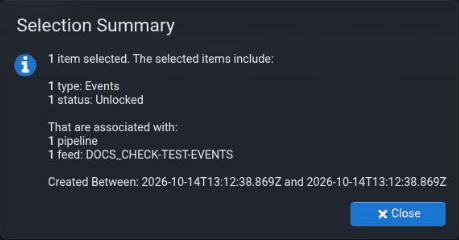
Selection summary tells you what the ticks add up to before you act on them:
The tick box in the header
The header tick box is not "tick this page". Ticking it selects every stream the filter matches, on every page, including ones you have not scrolled to. A half-filled header box means some, but not all, are ticked.
Because that can be a very large number, any action you take with the header box ticked asks a second time, saying it will act on all items that match the filter, not just those visible on screen. Read the summary that follows before confirming.
The toolbar
The stream list and the related streams list each have a toolbar. A button you do not have the permission for is not shown at all.
| Button | Needs the permission | Enabled when | Does |
|---|---|---|---|
| Process | Manage Processors | At least one stream is ticked | Creates processor filters for the ticked streams, to process them for the first time or to reprocess them. See Reprocess data. |
| Delete | Data - Delete | At least one ticked stream is not already deleted, and you have delete permission on at least one of them | Marks the ticked streams Deleted. |
| Restore | Data - Delete | The filter includes Deleted streams, at least one ticked stream is deleted, and you have edit permission on it | Returns deleted streams to Unlocked. |
| Selection summary | At least one stream is ticked | Counts the ticked streams by type, status, feed and pipeline. Stream list only. | |
| Download | Data - Export | At least one stream is ticked | Downloads the ticked streams as a zip. |
| Upload | Data - Import | Always, but only on a feed's Data tab | Adds a stream to this feed from a file, as if it had been sent. Stream list only. |
| Filter | Always | Changes the list's filter. Stream list only. |
The related streams list has its own Process, Delete, Restore and Download, driven by its own tick boxes. Ticks in one list do nothing to the other's buttons.
Every action that changes data asks you to confirm, then shows a summary of exactly which streams it will affect, then acts. The summary is the last chance to notice that a filter or a header tick has caught more than you meant.
Delete and Restore check your permissions on the server after you tick, so they can take a moment to light up after the others.
Delete
Deleting is not immediate removal. It sets the streams' status to Deleted, which hides them from the default filter and from processing. The Data Delete job removes them for good once they have been deleted for longer than stroom.data.store.deletePurgeAge (P7D, seven days, by default). Until then they can be restored.
Restore
Restore is greyed out on the default filter, always, because the default filter only lists Unlocked streams and so never lists one to restore. To restore streams:
- Click Filter and change the status term to
Status = Deleted, adding a Created range if the feed is large. Confirm the advanced filter warning. - Tick the streams to restore.
- Click Restore , and check the summary.
A stream already removed by the Data Delete job cannot be restored.
Stepping from the preview
The blue step button at the bottom right of the preview opens the Stepper on the stream being previewed: the highlighted stream, not the ticked ones. It asks which pipeline to step with.
It appears only when a stream is showing in the preview, and only for users with the Pipeline Stepping permission.